

Windows 11 24H2: Check Your PC Before the Support Deadline
A practical guide for Home and Pro users: identify your version, prepare your files, and understand your next update.
Your computer can feel perfectly normal while an important support deadline approaches. The browser opens, your files are there, and yesterday's work looks exactly as you left it. That makes a Windows version number easy to ignore.
For people running Windows 11 24H2 Home or Pro, now is a good time to check it. Microsoft says updates for those editions end on October 13, 2026. The useful response is to identify your installation and prepare a supported update path, rather than rush into reinstalling everything.
The detail to check first
Both the edition and the version matter. “Windows 11” alone does not tell you whether this deadline applies. This guide focuses on personal PCs running Home or Pro, not organization-managed Enterprise or Education deployments.
What happens when Windows 11 24H2 reaches end of updates?
Microsoft's release-health notice says the affected editions will stop receiving monthly security and preview updates, fixes for known issues, time-zone updates, and technical support. This is a servicing deadline for a particular Windows release, not an announcement that every Windows 11 installation is being retired. Read Microsoft's notice.
Think of the deadline as a reason to schedule maintenance. The question is whether your computer will continue receiving the operating-system fixes it needs, even if your usual applications still appear to work.
Step 1: Find your edition and version
Open Settings → System → About. Under Windows specifications, find the entries for Edition and Version. Write down both before making changes. Microsoft's device-information guide explains where to find them.
If the entries say Windows 11 Home or Pro and 24H2, this guide applies directly. If they show another release, check that release's lifecycle instead. Enterprise and Education have a separate servicing schedule; a work or school PC should follow its administrator's update plan.
Keep a small note with your edition, version, computer model, and any message shown in Windows Update. If you later need help, those details are much more useful than saying that your laptop “will not update.” Avoid posting a full settings screenshot publicly if it contains identifiers you do not need to share.
Step 2: Back up the files that would be hard to replace
Microsoft recommends backing up files and settings before upgrading or reinstalling Windows. An external drive or a suitable cloud location can provide a separate copy. Do this before you need recovery, rather than assuming a previous-installation folder will rescue everything afterward. Microsoft explains the limitations of Windows.old here.
Start with the files you actually work on: current projects, family photos, invoices, exported designs, and documents stored outside the usual folders. An old backup may miss the work you completed this week.
Open several files from the backup location to check that the copy is usable. If you use cloud storage, confirm the upload has finished. Seeing a folder name on your computer is not the same as confirming that its latest contents are available elsewhere.
Check access to your recovery key
If BitLocker or Device Encryption protects your drive, make sure you can access the correct recovery key from another device or a secure offline copy. This does not mean an ordinary update will necessarily request it; it means you are prepared if recovery becomes necessary.
Microsoft cannot recreate a lost recovery key. Its recovery-key guide explains backup options. Keep the key private, and contact your IT administrator if the device belongs to an organization.
Step 3: Check storage and choose a sensible time
Open Settings → System → Storage to inspect free space. For multiple drives, the additional storage settings can show usage across them. Pay attention to the drive containing Windows, rather than assuming free space on another drive solves the problem.
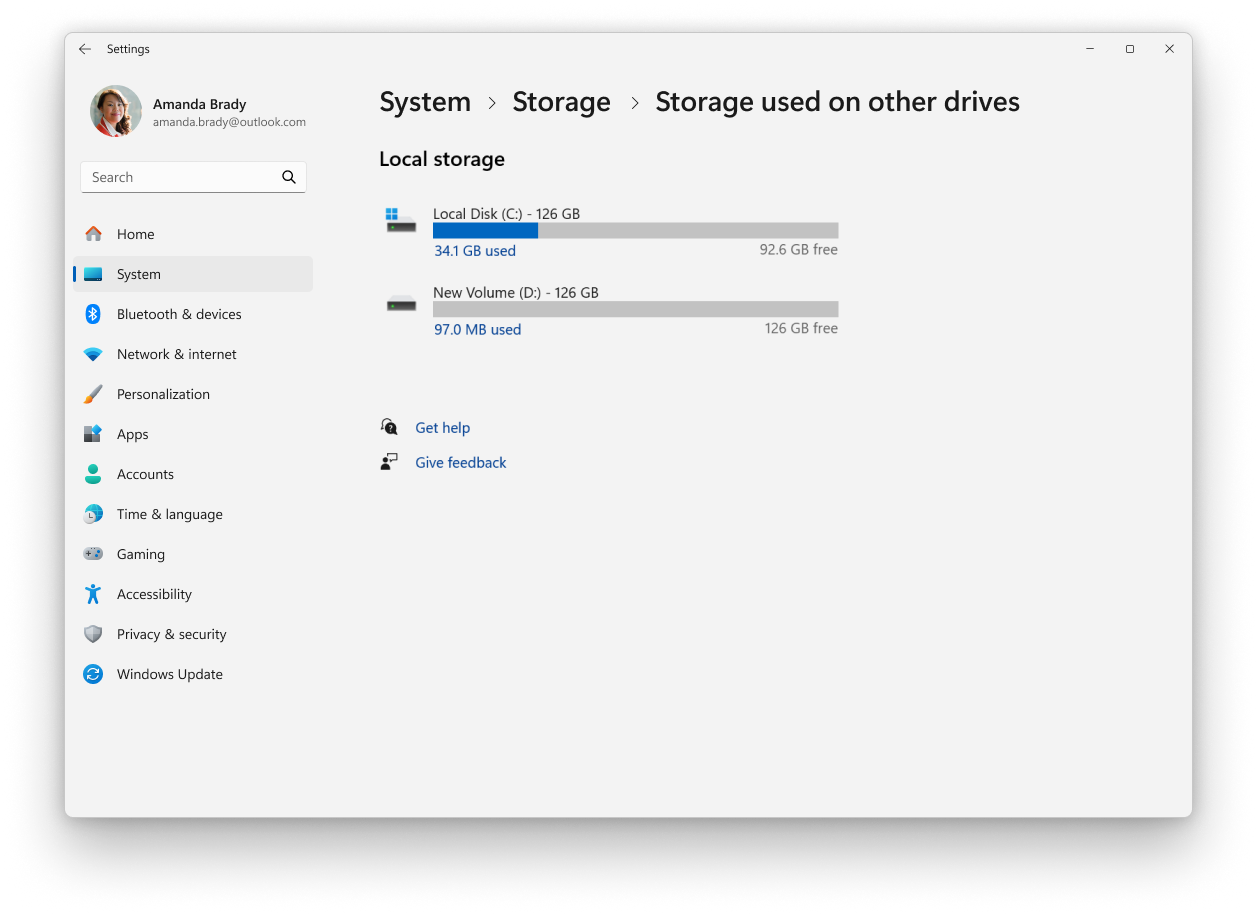
If space is low, review your own unused files and applications before deleting anything. Do not remove unfamiliar system folders to chase an arbitrary free-space target. Follow any space requirement Windows Update actually reports for your device.
Choose a time when an interruption will not derail your work. Keep a laptop connected to power and use a dependable internet connection. Allow time afterward to check your normal applications; finishing the restart is only part of a useful maintenance session.
Step 4: Check the update offered to your PC
Go to Settings → Windows Update → Check for updates. Microsoft's 24H2 guidance points eligible, unmanaged Home and Pro devices toward version 25H2. Follow the supported offer shown for your machine rather than selecting an installer solely because its version number looks newer.
Read the screen before continuing, save your open work, and complete any required restart. You can use Windows Update's restart scheduling options to choose a more convenient time. Installation duration varies with the device, download, and update involved; there is no honest universal promise that it will finish in a few minutes.
Microsoft's Windows Update FAQ covers checking updates, restart timing, and update history.
Why the 24H2-to-25H2 update can be different
Microsoft documents an enablement-package route from 24H2 to 25H2. The two versions share a common core, and the package activates the newer release's features on a suitably updated installation. Its prerequisites include 24H2 and the specified cumulative update or a later one; a restart is required.
That mechanism is useful context, but it is not a reason to install a package blindly. Let the normal update process handle applicability. The official details are in KB5054156 .
What if the feature update does not appear?
A missing offer does not identify the cause by itself. Check whether updates are paused, a restart is pending, or your organization manages the device. Record the exact message rather than assuming the computer is too old.
Microsoft also uses safeguard holds to keep affected devices from receiving feature updates when a known compatibility issue could cause a poor experience. Its guidance recommends waiting until the issue is resolved and the hold is released instead of manually forcing the update.
Do not treat a compatibility hold as an obstacle to defeat
Check Microsoft's safeguard guidance and the release-health page for the target version. If the deadline is approaching and your PC remains blocked, ask Microsoft or your device manufacturer for a supported next step.
If installation fails, collect evidence before trying fixes
Write down the error code, the update name, and when the failure occurred: during download, installation, or restart. Note whether Windows returned to the previous version. These observations help distinguish different problems that otherwise look identical.
Use Microsoft's upgrade-error guide to match the reported code to its troubleshooting advice. If the same failure repeats, seek help with that evidence instead of stacking unrelated fixes on top of one another.
For example, “installation returned to 24H2 after restarting and displayed this code” gives a technician a useful starting point. “Nothing works” leaves them guessing. Change one thing at a time so you can tell whether it helped.
After restarting: test a normal working day
Return to About and confirm the installed version. Then open a current document, use your browser, and test the equipment you depend on. For a home office, that might include Wi-Fi, a headset microphone, an external display, and a printer.
A short, deliberate check is more useful than opening dozens of apps at random. If you normally edit video, open a small existing project. If you join online lessons, test the camera and audio before the next session. Keep your backup while you confirm everything important behaves as expected.
Your final checklist
- Edition and version recorded.
- Important files copied and checked.
- Recovery key accessible, if encryption is enabled.
- Update completed through a supported route.
- Everyday applications and essential peripherals checked.
Frequently asked questions
Is Windows 11 itself ending support in October 2026?
No. This deadline concerns particular editions of version 24H2. Windows 11 has separate servicing dates for different releases and editions.
Does Enterprise or Education follow the same deadline?
No. Check Microsoft's separate Enterprise and Education lifecycle page and follow your organization's deployment plan.
Do I need to erase my computer?
Do not begin with a clean installation just because a servicing deadline is approaching. Check the normal update offer first. Any recovery or reinstall decision should account for the actual issue and your backups.
What if I already run another supported version?
Keep that version updated and check its own lifecycle. You do not need to return to 24H2 to follow this guide.
Start with the version check today. Once you know which installation you have, you can make a practical plan instead of reacting to a headline that may not apply to your computer.
Prepared from Microsoft documentation checked September 24, 2026. This is a general tutorial, not a test of every PC configuration. Update offers and compatibility information can change.
Explore more VexNovax Tech Tutorials .
Comments
No comments yet.
Post a comment